

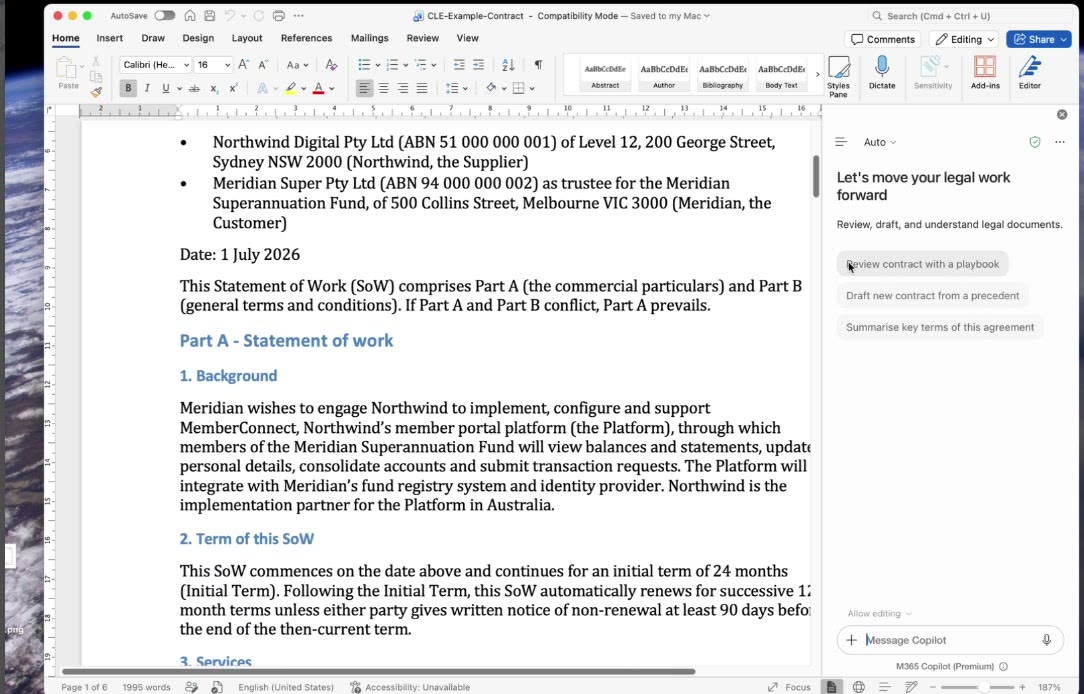
Microsoft has added a legal plugin to Copilot in Word. Open a contract, ask Copilot to review it against a playbook, and it works through the document topic by topic, tells you which clauses meet your standards and which don't, and proposes the fixes as tracked changes. We tried it this week on a fictional services contract and recorded the run. Since then the most common question has been the practical one: why can't I see it?
What you need
Each user needs a Microsoft 365 Copilot commercial licence assigned. Copilot Chat on its own isn't enough, because the legal skills run inside Copilot in Word. In our recording the pane footer reads "M365 Copilot (Premium)", which is how you can tell the licensed experience is the one running.
They also need Word desktop. Microsoft lists Word desktop and Copilot Cowork as the two places the legal plugins run, and Word for the web isn't on that list. Microsoft hasn't published a minimum build for the plugin. We ran it on Word for Mac version 16.114, so the simple advice is to update Word to the latest version and restart it.
Finally, the rollout has to have reached your tenant. Microsoft announced general availability in message center post MC1509799 on 15 October 2026, with the worldwide rollout running from mid-October to mid-December 2026. If everything else is in place and the skills still aren't there, it's probably the rollout.
What admins control
There's no setup step. The plugin is enabled by default for every user with a Copilot licence, so the admin decision is whether to leave it on.
To turn it off, an admin goes to the Microsoft 365 Apps admin center (config.office.com), opens Customization, then Policy Management, and creates a policy configuration that sets Legal Skills in M365 Copilot in Word. Microsoft's own page for this is Manage Copilot for legal.
The plugin for Copilot Cowork works the other way around. Users add it themselves from Cowork, and admins govern it on the Agent Tools page of the Microsoft 365 admin center, where it's listed as Legal for Cowork.
Microsoft also says the separate Legal Agent, which some organisations tried through the Frontier preview, is being retired, with its capabilities moving into these plugins.
What users control
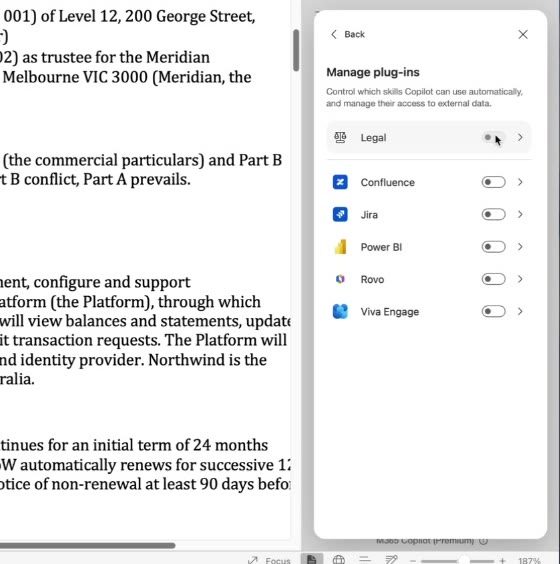
Each person can also switch the skills off in their own Word. In the Copilot pane, open the menu, choose to manage plugins and toggle Legal. If one person in a team can't see the legal options while everyone else can, check this toggle first.
If you can't see it
Work through these in order:
- Check the user has a Microsoft 365 Copilot licence assigned in the Microsoft 365 admin center.
- Make sure they're in Word desktop, updated to the latest version and restarted.
- Check the Legal toggle under the plugins menu in the Copilot pane.
- Ask your admin whether a "Legal Skills in M365 Copilot in Word" policy has been set to turn it off.
- If all of that checks out, the rollout may not have reached you yet. Microsoft expects it to complete by mid-December 2026.
What the review looks like
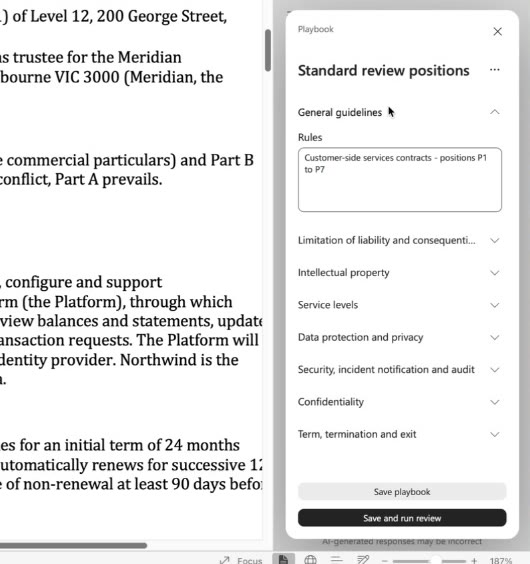
The review runs from a playbook, which is a Word document setting out your standard positions. We gave it a two-page set of customer-side positions covering liability, intellectual property, service levels, privacy, security, confidentiality and termination. Copilot turned that into a playbook with rules for each topic, which you can read and edit before running the review, and save for the next contract.
The results come back topic by topic. Clauses that meet the playbook are marked acceptable, with the relevant text and a short explanation. Clauses that don't are flagged with the number of issues, and each issue comes with a proposed edit.
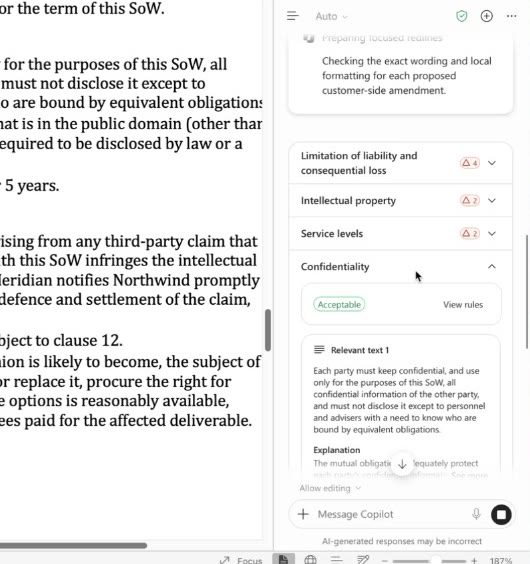
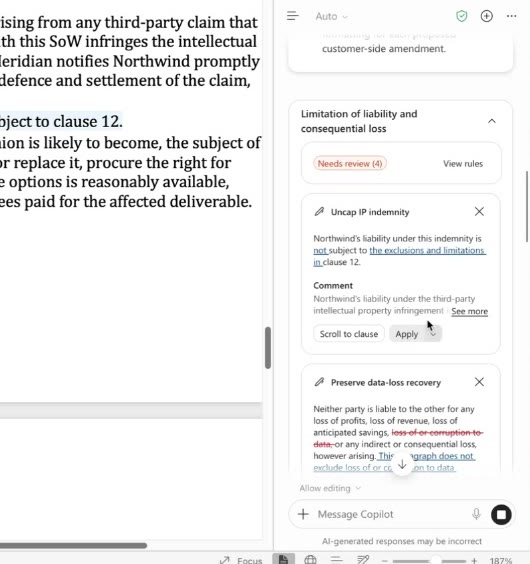
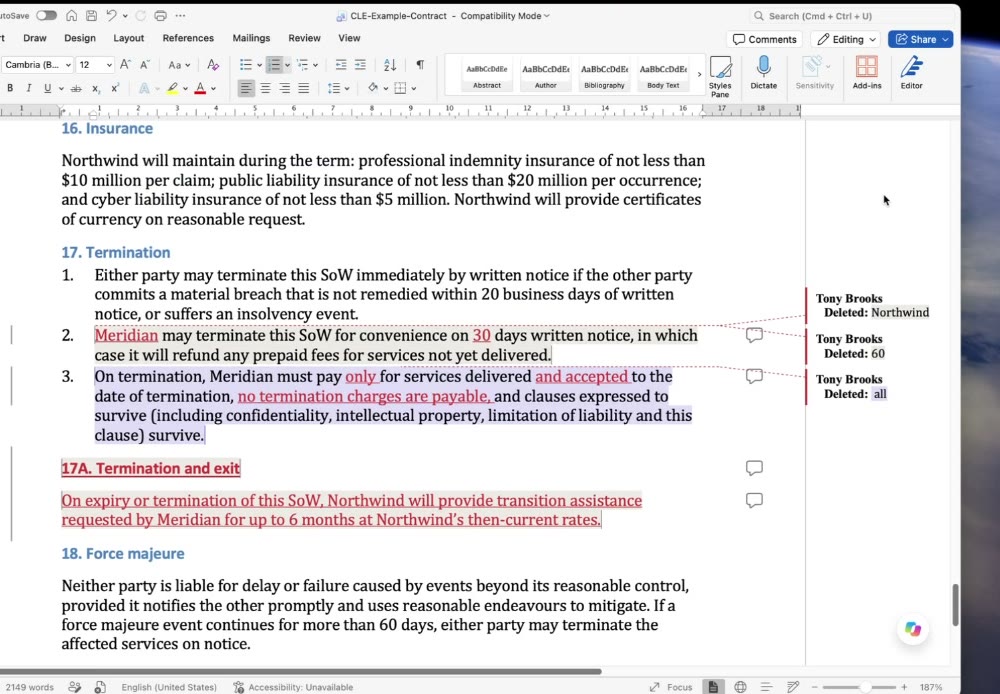
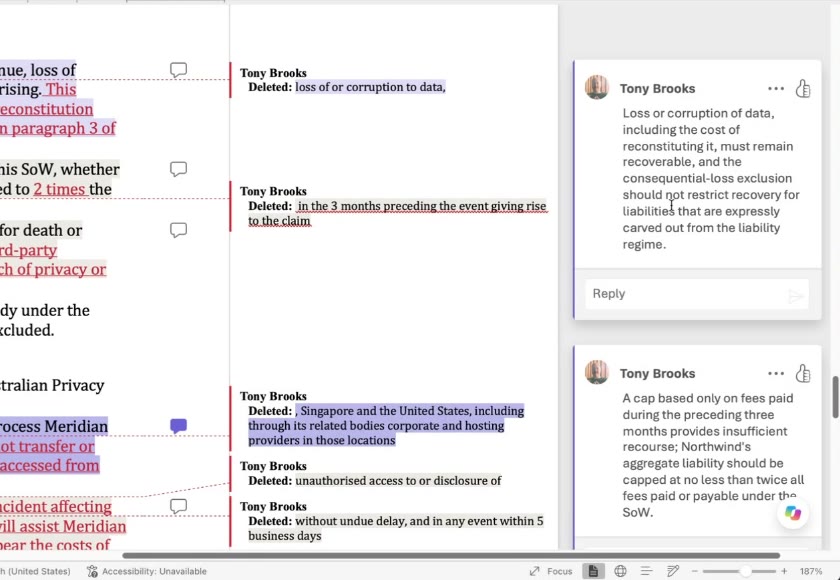
You can apply edits one at a time or all together. When we chose to apply the edits with comments, Copilot made the changes as tracked changes and added a comment explaining each one, so whoever reads the redline can also see why it was made.
A few things worth knowing before you rely on it. The playbook has to be a .docx file. Microsoft notes that reviews can take a few minutes and stream in by topic, and our runs varied in speed. Reviews currently work from playbooks only, so you can't yet point it at a template or a precedent and ask for a comparison review. And as Microsoft says, Copilot doesn't give legal advice, so a lawyer still owns every change that goes out.
A governance decision, made up front
Because the plugin arrives switched on, the question for most organisations is who should be using it, and on which documents. That sits squarely in the Governance pillar of the way we work with clients: decide the policy before people start relying on the feature. For a legal team, that usually means agreeing which playbooks are the approved ones, where they're stored, and how a Copilot-suggested redline is checked before it leaves the building. For everyone else, it may mean asking whether the legal skills should be on for staff who don't work on contracts at all.